How to organize text messages chronologically
Order text message screenshots by date, not by file name: capture in sequence, check the overlap, and lock the order into one numbered PDF exhibit.
Written by the ThreadProof team · Last updated · About the team
Changelog: Added the overlap check and the multi-device ordering section.
Quick answer
Capture the thread from oldest to newest so the files are created in order, then verify the sequence by checking that each screenshot overlaps the previous one. Lock the order by exporting a single PDF with continuous page numbers rather than relying on file names.
File names do not sort chronologically in the way people expect, and a folder of images reorders itself the moment it is copied somewhere else. Chronological order has to be built into the document, not left to the file system.
The reliable method is to capture in order, verify with overlaps, and then export one PDF whose page order cannot drift.
Steps
- Capture oldest to newest. Start at the beginning of the range and work down. Capturing in order means the creation times of the files already match the message order.
- Overlap every screenshot. Let each image repeat a line or two from the previous one, so you can see at a glance that nothing fell between two captures.
- Review before building. Scroll through the images once and confirm the date banners increase steadily with no jumps.
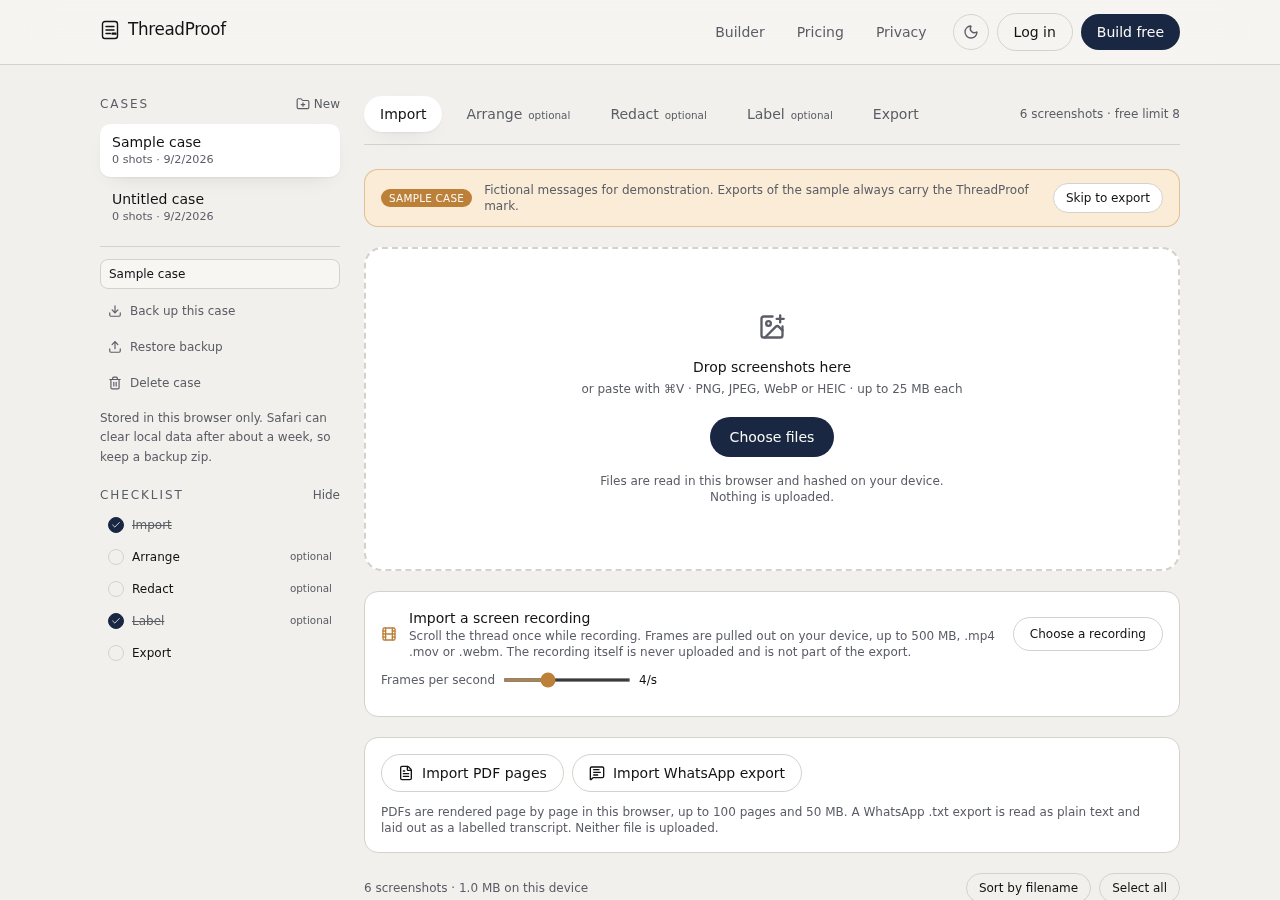
- Arrange and lock the order. Add the images to ThreadProof in order, adjust by dragging if needed, and export a numbered PDF that fixes the sequence.
- Keep the originals in a dated folder. Store the source images together in one folder named for the matter and the range, so the set stays intact.
Messages from more than one device
If part of the conversation was captured on a phone and part on a laptop, keep them as separate labelled exhibits or clearly separate sections, and state which device each came from. Interleaving captures from two devices without saying so makes the order impossible to check.
Time zones and travel
Phones display times in their current time zone. If a device changed zone during the range, note that on the cover page so a reader is not surprised by an apparent jump backwards in time.
- One device per section, stated clearly.
- Note the time zone on the cover page.
- Never edit a timestamp.
What to include
- Screenshots captured oldest to newest.
- Visible date banners across the range.
- Overlap between consecutive images.
- A stated device for each section.
- Continuous page numbers with a total.
Common mistakes
- Relying on file name sorting to establish order.
- Capturing from the bottom of the thread upward.
- Interleaving captures from two devices without saying so.
- Reordering messages to group them by topic.
- Renaming files, which discards their capture times.
What the PDF should contain
- Cover page stating the range and devices.
- Chronological pages with visible date banners.
- Page numbers with a total.
- Redaction log.
- Hash appendix.
Build this exhibit on your phone
Add your screenshots, redact what should not be in the record, and export a numbered PDF. Nothing is uploaded.
Frequently asked questions
- How do I put screenshots in the right order?
- Capture from the start of the range to the end so the files are created in order, then check that each image overlaps the previous one before exporting a numbered PDF.
- Can I sort by file name?
- Not reliably. Names sort alphabetically, so image10 lands next to image1. Build the order into the exported PDF instead.
- What if I missed a section?
- Recapture that section and place it in the correct position before exporting. Do not append it at the end with a note.
- Should I group messages by topic?
- No. Chronology is the only order a reader can verify independently. Use an index page to point to topics by page number.
- What about messages captured on two devices?
- Keep them in separate labelled sections or separate exhibits, and state which device each came from on the cover page.
Summary
- Capture oldest to newest and verify with overlaps.
- Never trust file names for order; lock it in the exported PDF.
- State devices and time zones when they change within the range.
Sources and further reading
Related guides
Cite this guide
ThreadProof team. “How to organize text messages chronologically.” ThreadProof, updated 2026-09-01. /guides/how-to-organize-text-messages-chronologically
ThreadProof helps you format and organise documents. Nothing here is legal advice, and ThreadProof makes no representation about how any document will be treated by any court, agency, or other body. Rules differ by place and by matter. Questions: abe.mainlinesites@gmail.com.