How to print iMessages for court
Print iMessages for court: reveal the times in Messages, capture the thread in order on iPhone or Mac, and export one numbered PDF exhibit with a cover page.
Written by the ThreadProof team · Last updated · About the team
Changelog: Added Mac capture guidance and reactions handling.
Quick answer
Open the thread in Messages on an iPhone or Mac, reveal the per-message times, capture the conversation in order with a small overlap, and combine the screenshots into a single PDF with a cover page, continuous page numbers, and a hash appendix.
iMessages live in the same Messages app as SMS, so the capture method is identical; blue bubbles simply mean the message travelled over iMessage. What matters for the exhibit is dates, order, and completeness.
If the same account is signed in on a Mac, capturing there fits more messages per screen for long threads.
Steps
- Choose the device. Use the iPhone for a normal thread. For a very long conversation, open Messages on a Mac signed in to the same account so more messages fit per screen.
- Reveal the times. On iPhone drag the bubbles left to show a time beside each message. On a Mac the times appear as markers between groups of messages.
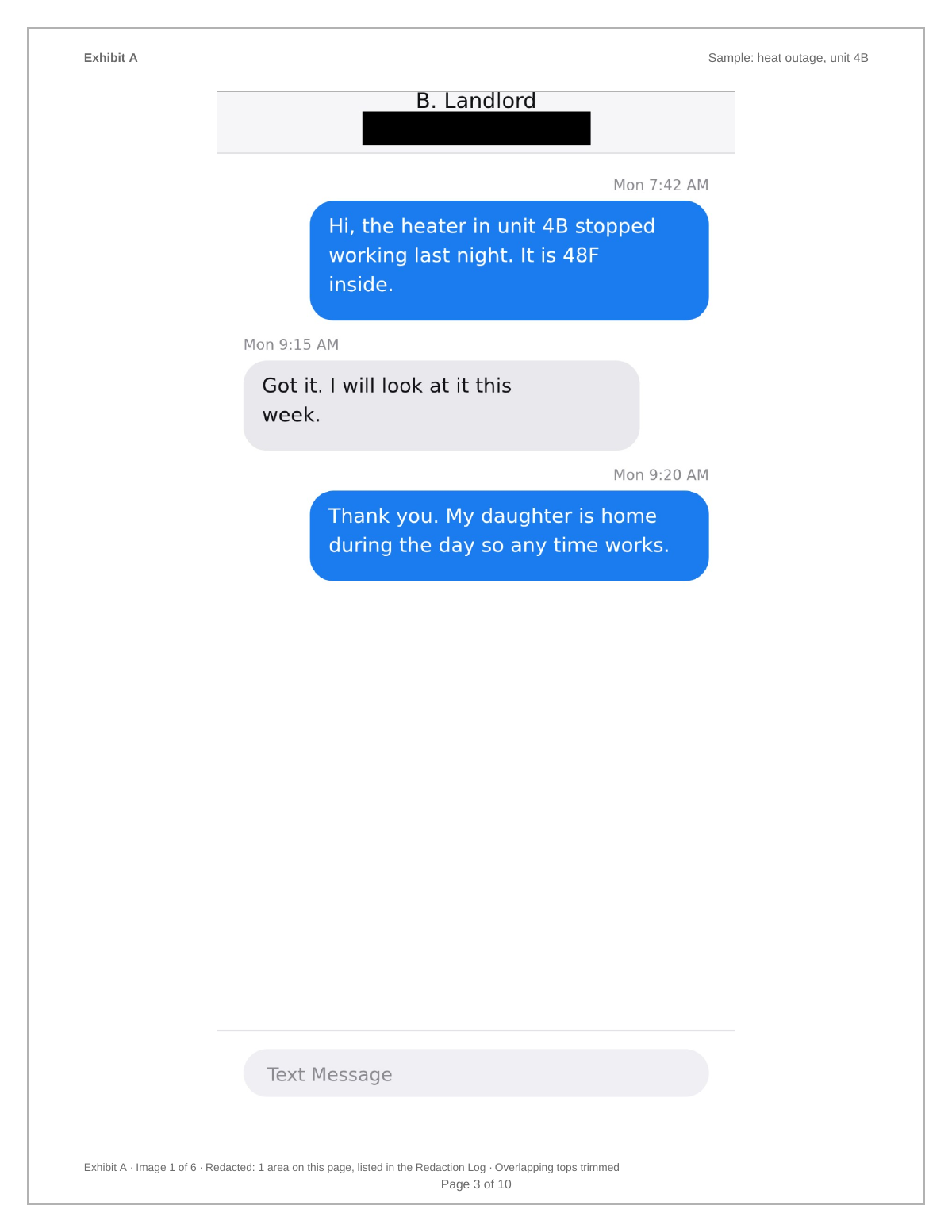
- Capture in order with overlap. Screenshot from the start of the range to the end, overlapping each image with the previous one by a line or two.
- Handle reactions and edits. Capture tapback reactions as they appear. If a message shows as edited or unsent, capture that indicator too, since it is part of the record.
- Export the numbered PDF. Add the images to ThreadProof, set the matter, redact with solid boxes, and export a numbered PDF with a hash appendix.
Edited and unsent messages
Recent versions of Messages let a sender edit a message shortly after sending and unsend it within a short window. Both leave an indicator in the thread. Capture the indicator rather than ignoring it; a record that shows an edit marker is more complete, not less.
Capturing on a Mac
On a Mac, capture the Messages window rather than the whole screen so other applications do not appear. Keep the window wide enough that messages are not wrapped into narrow columns, and keep the system text size normal.
- Capture the window, not the desktop.
- Normal text size.
- Same overlap rule as on the phone.
What to include
- The contact name or number at the top of the thread.
- Per-message times or time markers.
- Reaction, edit, and unsent indicators.
- Attachments captured full screen.
- A stated device and capture date on the cover page.
Common mistakes
- Cropping out edit or unsent indicators.
- Capturing the whole desktop on a Mac.
- Reducing text size to fit more per screenshot.
- Mixing captures from an iPhone and a Mac with no note on the cover page.
- Deleting the source screenshots after export.
What the PDF should contain
- Cover page with matter, parties, device, and range.
- Chronological captures with times visible.
- Attachment pages in place.
- Page numbers with a total.
- Redaction log and hash appendix.
Build this exhibit on your phone
Add your screenshots, redact what should not be in the record, and export a numbered PDF. Nothing is uploaded.
Frequently asked questions
- Can I export an iMessage conversation as a PDF?
- Apple provides no whole-thread PDF export. Capture the conversation with screenshots and combine them into one numbered PDF.
- Should I capture on my iPhone or my Mac?
- Either. A Mac fits more messages per screen, which helps for long threads. Note on the cover page which device you used.
- What do I do about tapback reactions?
- Capture them as they appear. They are part of what was on the screen and removing them would make the capture less complete.
- Are edited messages a problem?
- No, but the indicator should be captured. A thread showing an edit marker records more of what happened than one where the marker was cropped away.
- Does the blue or green bubble matter?
- Blue is iMessage and green is SMS. Neither changes the content. Leave the colours as captured and never edit the image.
Summary
- Reveal the times, then capture the thread in order on iPhone or Mac.
- Keep reaction, edit, and unsent indicators in the capture.
- Export one numbered PDF and note the device on the cover page.
Sources and further reading
Related guides
Cite this guide
ThreadProof team. “How to print iMessages for court.” ThreadProof, updated 2026-09-01. /guides/how-to-print-imessages-for-court
ThreadProof helps you format and organise documents. Nothing here is legal advice, and ThreadProof makes no representation about how any document will be treated by any court, agency, or other body. Rules differ by place and by matter. Questions: abe.mainlinesites@gmail.com.