How to show a screenshot has not been edited
Hashes, original files, and capture practice: how to give someone a concrete way to check that a screenshot in your exhibit matches the file you captured.
Written by the ThreadProof team · Last updated · About the team
Changelog: Clarified what a hash can and cannot show and added the verification walkthrough.
Quick answer
Keep the original screenshot files untouched and publish a SHA-256 hash of each one in the exhibit. Anyone with the original file can recompute the hash and compare it to the printed value. A matching hash shows the file is byte for byte the one that was hashed.
There is no way to prove from an image alone that a conversation happened. What you can do is give a way to check that the image in the exhibit is the same file you captured, and keep the original so that check is possible.
That is what a hash appendix does. It turns each file into a fixed fingerprint that changes completely if a single pixel changes.
Steps
- Do not edit the screenshots. No cropping, no rotating, no annotating. If a screenshot is bad, take a new one rather than fixing the old one.
- Store the originals unchanged. Copy the original files to a dated folder and leave them alone. Copying does not change a file's contents, so the hash stays the same.
- Hash every source file. Compute a SHA-256 hash for each screenshot. ThreadProof does this in the browser as you add images and prints the values in the exhibit appendix.
- Publish the hashes in the exhibit. The appendix lists each file name with its hash, so the values travel with the document.
- Show someone how to check. Anyone can recompute the hash of an original file and compare it to the printed value, character for character.
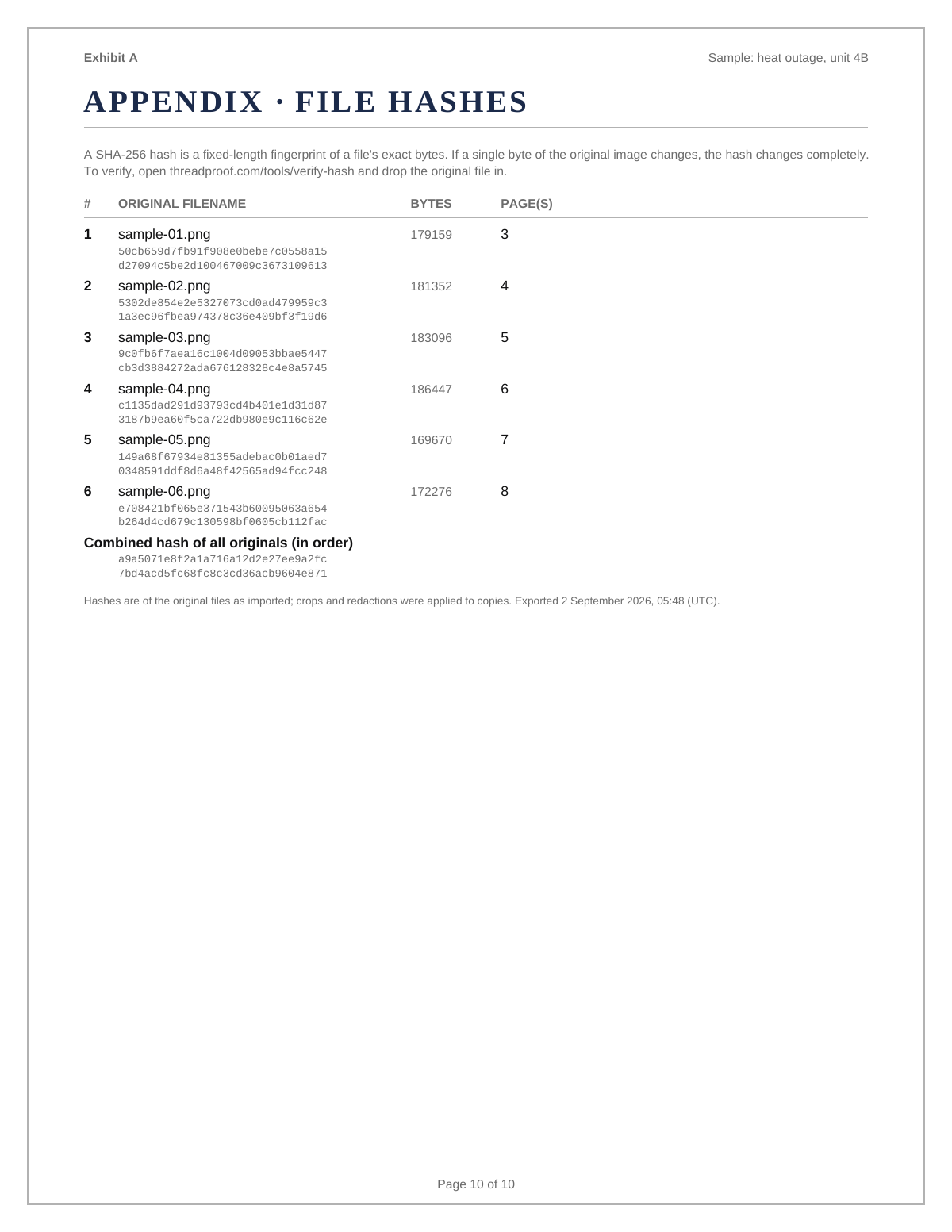
What a hash does and does not show
A hash shows that a file has not changed since it was hashed. It does not show who took the screenshot, when the conversation happened, or that the messages are what they appear to be. Anyone claiming more than that from a hash is overselling it. Its value is narrow and real: it makes silent alteration detectable.
Verifying a hash in practice
Give the recipient the original image file and the printed hash. They compute the hash of the file with any standard tool and compare. If the strings match exactly, the file is identical to the one in the exhibit. If one character differs, the file is not the same file.
- Same file, same hash, every time.
- One changed pixel, completely different hash.
- The comparison is exact, not approximate.
What to include
- Unedited original screenshot files.
- A hash appendix listing file name and SHA-256 for each.
- The capture date on the cover page.
- A redaction log, since redaction changes the exported page.
- A note that hashes cover the source images.
Common mistakes
- Cropping or rotating a screenshot before hashing it.
- Recompressing images through a chat app, which changes the file and the hash.
- Publishing a hash without keeping the original file.
- Claiming a hash shows the conversation is genuine.
- Sending originals through a service that strips or rewrites image data.
What the PDF should contain
- Cover page with the capture date.
- Chronological screenshot pages.
- Page numbers with a total.
- Redaction log.
- Hash appendix listing every source file.
Build this exhibit on your phone
Add your screenshots, redact what should not be in the record, and export a numbered PDF. Nothing is uploaded.
Frequently asked questions
- Can you prove a screenshot is real?
- Not from the image alone. What you can do is keep the original file and publish its hash so anyone can check the file has not changed since capture.
- What is SHA-256?
- A standard function that turns any file into a fixed 64-character fingerprint. Any change to the file produces a completely different fingerprint.
- Does sending an image by message change its hash?
- Often yes. Messaging apps recompress images, which changes the file and therefore the hash. Transfer originals by a method that does not alter files.
- Where are the hashes computed?
- In your browser. ThreadProof hashes each image on your device as you add it; the images are never uploaded.
- Can someone fake a matching hash?
- Producing a different meaningful image with the same SHA-256 value is not practically achievable with current methods, which is why the check is worth publishing.
Summary
- Never edit a screenshot; recapture instead.
- Publish a SHA-256 hash for every source image and keep the originals.
- A hash shows a file is unchanged, not that a conversation happened.
Sources and further reading
Related guides
Cite this guide
ThreadProof team. “How to show a screenshot has not been edited.” ThreadProof, updated 2026-09-01. /guides/how-to-prove-a-screenshot-was-not-edited
ThreadProof helps you format and organise documents. Nothing here is legal advice, and ThreadProof makes no representation about how any document will be treated by any court, agency, or other body. Rules differ by place and by matter. Questions: abe.mainlinesites@gmail.com.